✦ How Sage’s World works

From a real goal to a useful next step.

Set up one learner profile, choose the skills that matter now, practise in short supportive rounds and review the patterns. The adult stays in control from beginning to end.

  • Manual setup is always available
  • Core learning does not require AI
  • Progress signals are not formal assessment
  1. 1. Goal

    Choose a useful skill.

  2. 2. Personalize

    Make it familiar.

  3. 3. Practice

    Complete a short round.

  4. 4. Use the signal

    Decide what to try next.

The core idea

The app is not the plan. The learner’s goal is the plan.

Sage’s World is a way to turn that goal into an accessible interaction, observe what happens and carry the learning back into everyday life, instruction and team decisions.

The full learning loop

Four steps, repeated as needed.

Start with one focused target. The app supports practice and observation; the adult decides what the signal means in context.

  1. 1. Set the direction

    Choose a goal manually or review a draft suggested by the optional IEP reader.

  2. 2. Make it personal

    Add familiar words, photos, routines, stories and settings that matter to the learner.

  3. 3. Practise with support

    Use short rounds where cues appear gently and every question reaches a successful finish.

  4. 4. Review and adjust

    Look at strengths, trouble items and a practical next step, then choose what to repeat or change.

Step 1

Start with the learner—not a generic grade level.

Create a child profile and select the goals, interests, communication needs and routines that are useful now.

  • Set up manually

    Choose activities, enter goals and adjust levels without using any AI feature.

  • Optional IEP reader

    An adult can send selected IEP pages to Google Gemini for a draft setup, then review every suggestion before anything is applied. Google does not use the pages to train AI or have people review them. Sage’s World does not save the original pages; approved choices become part of the learner’s saved profile.

  • Keep the adult in control

    Goals, levels, photos, settings and shared information remain editable and reviewable.

Child setup

Adult review

Goal selected

Recognize familiar words used in daily routines.

Personalization

Use family names, school words and photos of familiar objects.

Starting support

Begin with picture and spoken-word cues; reduce support as patterns become consistent.

Optional AI can suggest a draft. It never applies settings without adult review.

Step 2

Choose the learning world that fits the goal.

Activities are organized around functional skills rather than a single school subject or one way of responding.

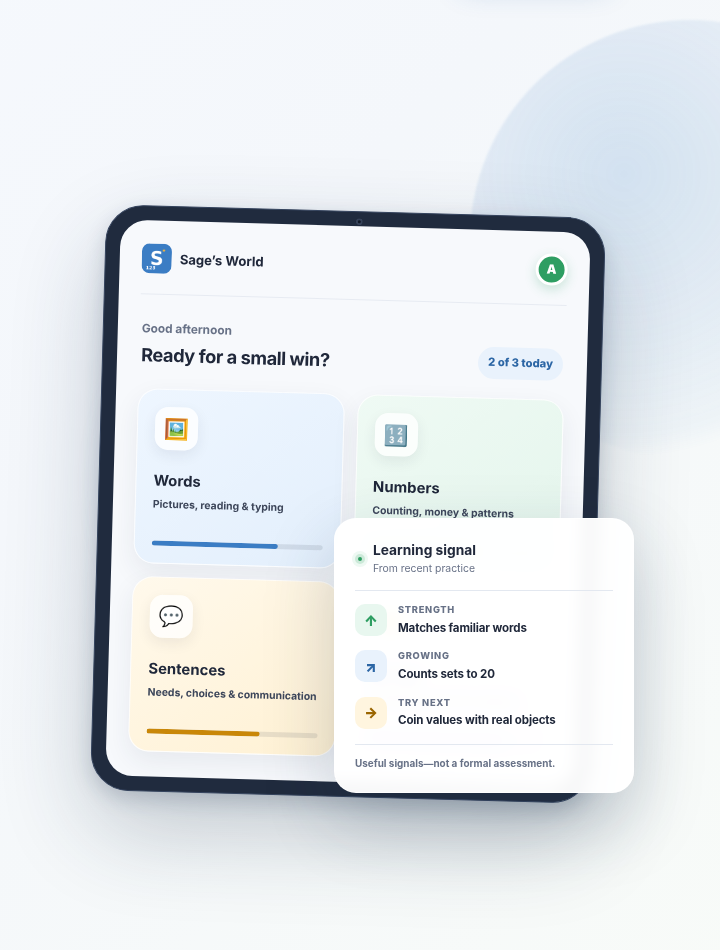
  • Words

    Picture–word matching, listening, reading and typing with familiar vocabulary.

  • Numbers

    Counting, money, shopping, patterns, shapes and functional comparisons.

  • Sentences

    Needs, choices, asking for help, sentence building, letters and free talk.

  • Feelings & Me

    Emotions, self-knowledge, personal information and communication about self.

  • My Day

    Visual schedules, social stories, routines and optional chore supports.

Step 3

Each question is designed to protect confidence.

The learner can try, receive support and still reach a correct ending. Difficulty is not treated as failure.

  1. First try

    The learner responds independently.

  2. Gentle cue

    Extra support appears when needed.

  3. Choices simplify

    Wrong options fade instead of punishing the attempt.

  4. Successful finish

    The round ends with the correct response and encouragement.

Step 4

Difficulty grows with the learner—and stays reviewable.

Early levels provide more visual and spoken support. Later levels introduce more complex choices, less prompting and genuinely new skills.

  • Automatic mode

    Difficulty can move gradually based on repeated strong or difficult rounds.

  • Manual mode

    An adult can choose a level or override the automatic pace for a particular game.

  • Optional level check

    A supportive placement round can help suggest a starting point without presenting itself to the learner as a test.

  1. 1

    More support

    Familiar pictures, spoken cues and clear choices.

  2. 2

    Build consistency

    Repeat the skill across a wider set of examples.

  3. 3

    Reduce prompts

    Move toward reading, memory, new contexts or more complex choices.

  4. 4

    Use the skill

    Apply the goal to functional tasks such as shopping, schedules or asking for help.

Step 5

Turn activity into a practical next step.

The progress view gathers the recent pattern so an adult can decide what to repeat, teach differently or share.

  • Notice strengths

    See items and skills that are becoming more reliable.

  • Find the gap

    Identify recurring trouble items instead of relying on a total score.

  • Try it in real life

    Connect the pattern to a short home, classroom or community activity.

  • Share the picture

    Copy a plain-language summary for the family or support team.

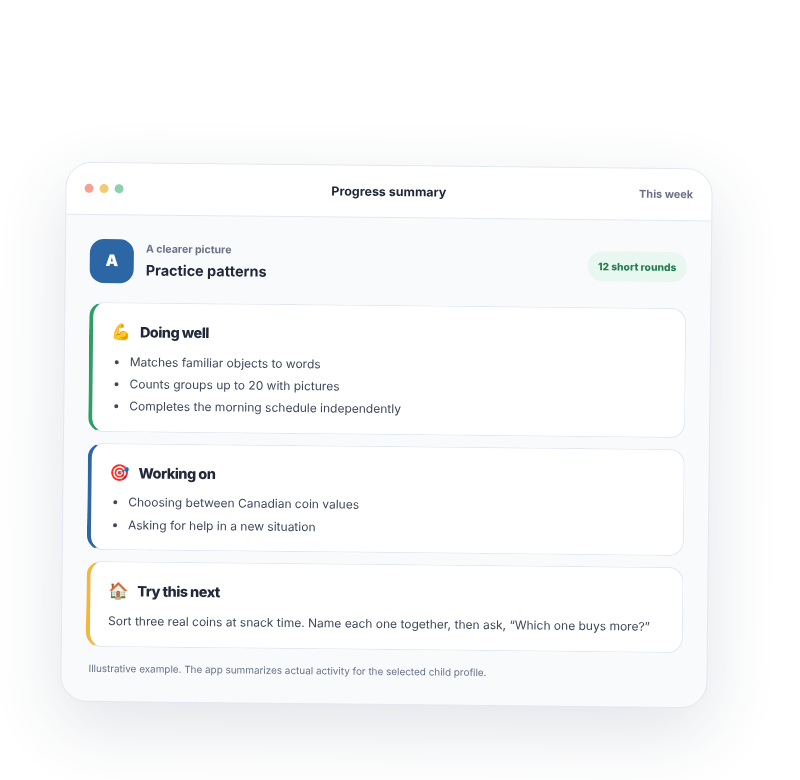
Progress summary

Selected learner
Recent focusWords and functional money
This week

Doing well 💪

Matches familiar object words and identifies the loonie consistently.

Working on 🎯

Confuses the quarter and dime when visually similar choices appear together.

Try this next 🏠

Use the same three coins in a real sorting task, then practise a small pretend purchase.

Practice-based observations. Not a formal assessment, diagnosis or grade level.

A realistic session

What ten useful minutes can look like.

The exact timing can change. The point is to keep practice focused, observable and easy to carry into the next moment.

  1. 1m

    Choose the goal

    Pick one activity connected to the current priority.

  2. 5m

    Complete a round

    Let the learner respond while the app supplies support as needed.

  3. 2m

    Review the signal

    Look at strengths, trouble items and the kind of help that worked.

  4. 2m

    Use it beyond the screen

    Try one real object, routine, sentence or team update.

Optional means optional

Use only the features that fit the family.

Core learning can be set up manually. Extra services are choices, not requirements.

  • Family cloud sync

    Optional sign-in can carry profiles and progress across approved devices.

  • AI IEP reader

    Selected pages go to Google Gemini to create a draft for adult review. They are not used to train AI or reviewed by people. Sage’s World does not save the original pages; approved choices become part of the saved profile.

  • Parent help chat

    Each request sends the question, recent chat context, the learner’s first name and a summary of practice results to Google Gemini. Google does not use this content to train AI or have people review it, and Sage’s World does not retain the conversation. The helper cannot change settings.

  • Personal photos

    Use custom images when they improve familiarity, or stay with generic visuals.

The loop begins with one goal

Choose what matters now. Let the learner show you more.

Start manually, complete one short round and review the resulting pattern before adding anything else.